.png?width=230&height=580&name=Bryx%20Logo%202020%20(White).png "Bryx Logo 2020 (White)")
Group messages can be sent from the app for people who have the “Send” permission enabled. To enable this, contact your agency’s manager.
BRYX MOBILE APP
Dispatch, in your pocket, before you're out the door.
Free for every first responder. The platform Bryx was built on.
PRODUCT FEATURES
Free for Every Responder. Built to Do This Much.
FREQUENTLY ASKED QUESTIONS
FAQ
-
-
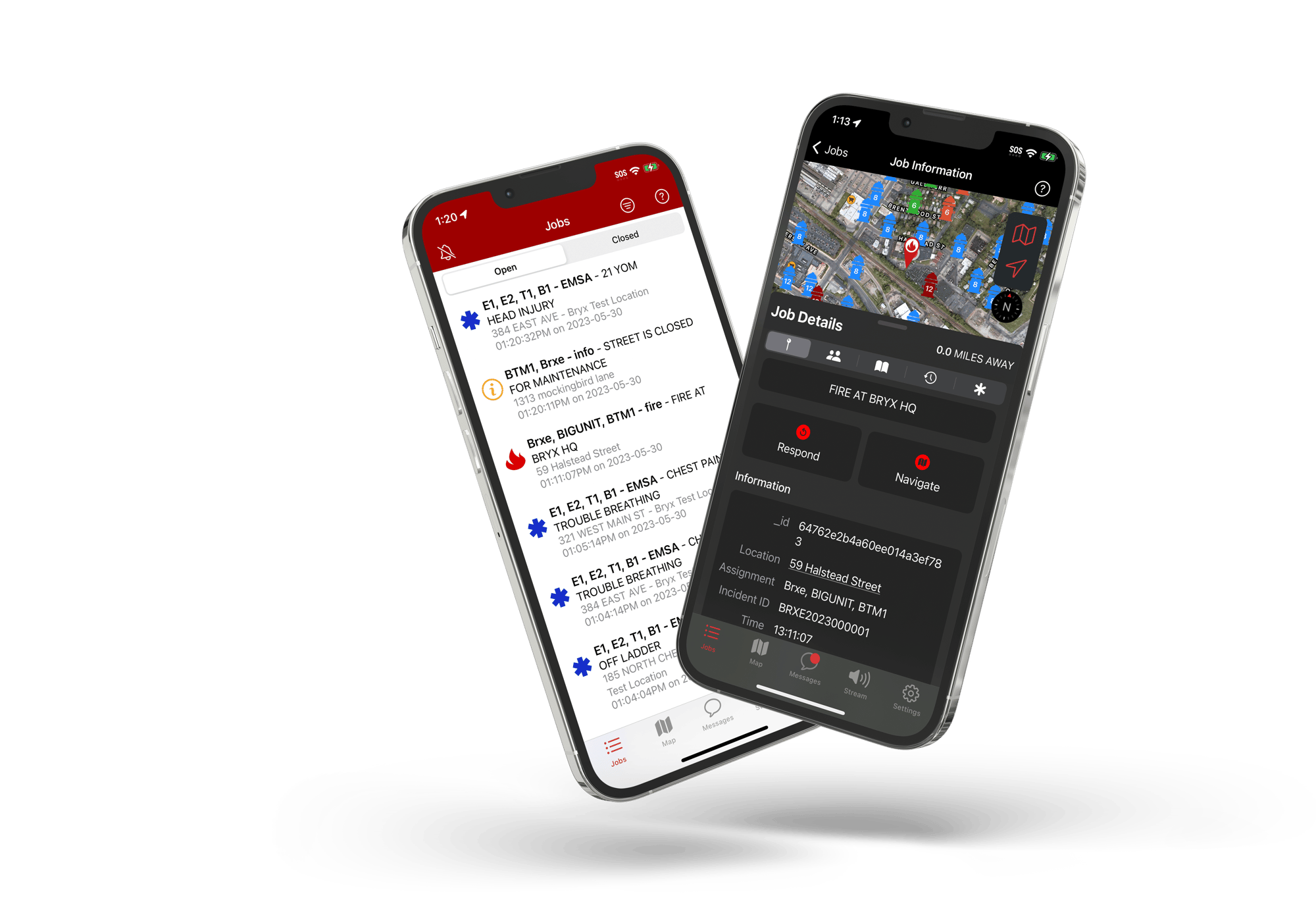
Emergency job alerts are sent directly from your agency’s CAD to mobile devices. Bryx Mobile includes routing and navigation, site survey data, mapped hydrant locations, historical job information, supplemental updates, real-time messaging, and live location updates for users.
-
To add mapped hydrants to your Bryx account, email a digital/electronic version of your hydrants, with latitude and longitude, to support@bryx.com. Common file formats are CSV, Spreadsheet, Shape File, GEOJson.
-
Bryx has developed a proprietary solution for geocoding addresses to location coordinates. Our service uses a variety of sources, including Google, Bing, and our own Overpass (OpenStreetMap) server to determine the best match for the given address. In the app, mapping is handled by Google Maps or Apple Maps, depending on the phone. For turn-by-turn navigation to a call, users can choose which service they would like to use.
-
(1) Check “On Duty” status in the top corner of the app;
(2) Check App Settings > Push Notifications;
(3) Check App Settings > Alert Settings > On/Off Duty for specific units;
(4) Check App Settings > Alert Settings > Unit > Alerts for incident types;
(5) Check App Settings > Notifications Channels > Notification Settings;(6) Check Phone Settings for enabling Bryx notifications;(7) Sign out and back in to re-sync notification settings;(8) Uninstall and reinstall (some settings may be lost).Lastly, if you’re not receiving sounds, check System Settings > Apps > Bryx 911 > Permissions > External Storage or File (system dependent), Restart App.
-
(1) Check “On Duty” status in the top corner of the app;
(2) Check App Settings > Push Notifications;
(3) Check App Settings > Alert Settings > On/Off Duty for specific units;
(4) Check App Settings > Alert Settings > Unit > Alerts for incident types;
(5) Check Phone Settings for enabling Bryx notifications;
(6) Sign out and back in to re-sync notification settings;
(7) Uninstall and reinstall (some settings may be lost).